How to Download YouTube Videos
To download a YouTube video, copy its link, paste it into the box above, and click Download. This guide explains each step and shows how it works on a computer, iPhone and Android.
Step-by-step guide
|
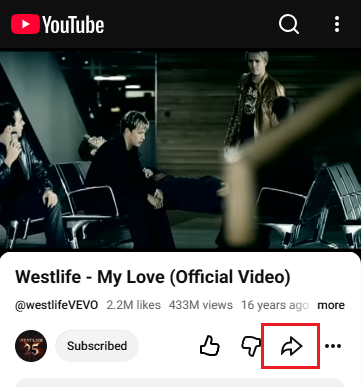
Step 1: Copy the YouTube video link Open the video on YouTube. On a computer, click Share below the video and choose Copy, or copy the URL from your browser's address bar. In the YouTube app, tap Share, then Copy link. |
|
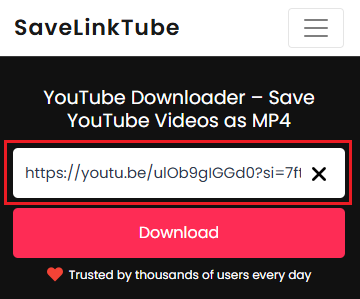
Step 2: Paste the link into SaveLinkTube Paste the link into the download box at the top of this page and click the Download button. Make sure the link points to a single video, not to a channel or playlist page. |
|
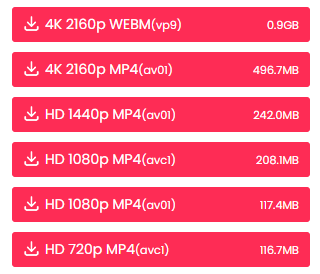
Step 3: Choose a quality SaveLinkTube checks the video and lists the MP4 qualities available for it. Higher resolutions such as 1080p, 4K or 8K look sharper on large screens but create bigger files. If the video was uploaded in a lower resolution, the higher options will not appear. |
|
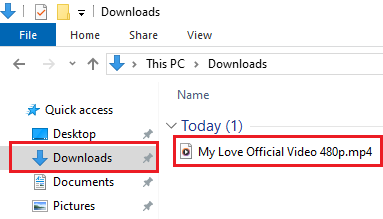
Step 4: Download and save the file Click the quality you want. The file is saved to your device's default download location, which is usually the Downloads folder on a computer. You can open it with any video player that supports MP4. |
Download YouTube Videos on Computer, iPhone and Android
SaveLinkTube works in your browser, so there is no app to install. The steps are the same on every device. What differs is where the file ends up.
Computer (Windows and Mac)
Use Chrome, Edge, Firefox or Safari. The video is saved to your Downloads folder unless your browser is set to ask where to save each file.
iPhone
Use Safari. When the download finishes, open the Files app and check the Downloads folder.
Android
Use Chrome or another browser. Look for the file in your Downloads folder or in your browser's download history.
Which Quality Should You Choose?
The best choice depends on where you will watch and how much storage you have. The options you see depend on the original video.
| Quality | Good for |
|---|---|
| 720p (HD) | Phones and small screens, or saving storage space |
| 1080p (Full HD) | Most laptops, TVs and everyday viewing |
| 4K | Large monitors and 4K TVs, when sharp detail matters |
| 8K | 8K displays, with very large files, only if the video offers it |
Higher resolutions take longer to prepare and download, and some phones and players cannot play the largest files smoothly. If a file does not play well, try downloading it again in 1080p.
If the Download Doesn't Work
Most problems come from the link or the video itself. Check that the link points to a single, publicly available video and try again. Private, age-restricted, region-locked or removed videos cannot be processed.
If a video downloads but something is wrong, such as no sound, a file that will not play, or a file you cannot find, see our troubleshooting guide.
Frequently Asked Questions
Where are downloaded YouTube videos saved?
On a computer, videos go to your Downloads folder or the location set in your browser. On iPhone, check the Files app. On Android, check the Downloads folder or your browser's download history.
Can I download YouTube videos on iPhone without an app?
Yes. Open SaveLinkTube in Safari, paste the video link, and download. The file can then be found in the Files app, depending on your iOS version and browser settings.
Which quality should I choose?
1080p is a good balance of sharpness and file size for most people. Choose 4K or 8K only if you will watch on a large, high-resolution screen and have enough storage.
How long does a download take?
It depends on the length of the video, the quality you choose, and your internet connection. Higher resolutions take longer to prepare and download.
Why is my downloaded video not playing?
Try opening it in another player such as VLC, or download it again in 1080p. Very high-resolution files can be hard to play on some devices.
Can I download any YouTube video?
Not necessarily. Only download videos that you own or have permission to save, and respect copyright and the platform's terms.
Ready to Save a Video?
Found a video you want to watch later? Copy its YouTube link, paste it into the box above, and choose an available quality to get started.